sudo apt-get install mysql-server mysql-admin mysql-query-browser
GrAudio edizione delle 15:30 del 3 febbraio
-
GrAudio edizione delle 15:30 del 3 febbraio
Canali: Vercelli
3 ore fa
Software engineering, programmazione, intelligenza artificiale, open source, e non solo...
7z.exe action [options] filename[.zip] file(s)
| a | Add - create a new archive, or add files to an existing archive |
| d | Delete - remove files from an existing archive |
| e | Extract - unarchive files |
| l | List - display the contents of an archive |
| t | Test - validate the integrity of an archive |
| u | Update - overwrite existing files in an existing archive |
| x | Extract - same as “e”, except that the files are restored to their exact original locations (if possible) |
| -x | Exclude file(s), as shown above |
| -t | The type of archive to create (-t7z, -tzip, -tgzip, -tbzip2 or -ttar). -t7z is the default. |
| -r | Recurse subdirectories |
| -sfx | Create a self-extracting archive |
| -mx=9 | This can be any number from 0 to 9, where 0 means no compression (just store the files), and 9 means maximum compression (takes longer). -mx=5 is the default, a compromise between the amount of compression obtained, and the time required to perform the compression. |
| -o | specifies the output directory (for when extracting). The default is to use the current directory. |
| -u | Update options. this switch works in conjunction with the add, delete, and update commands to determine conflict resolution. For example, what happens when a file being added to an archive already exists in the archive and the timestamp on the source file is older than the timestamp in the archive. Should the file in the archive be left alone, or overwritten? |
| -v | Create Volumes — This switch allows you to specify the maximum size for an archive file. If the archive file would be bigger than that, 7-Zip will automatically split it into multiple volumes. this will ensure that its the archive files can fit on whatever storage media you have at hand. |
winzip32 [-min] action [options] filename[.zip] file(s)
Acquire::http::proxy “http://username:password@indirizzo_proxy:porta″;
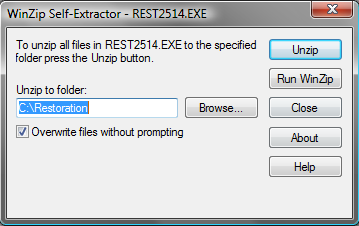
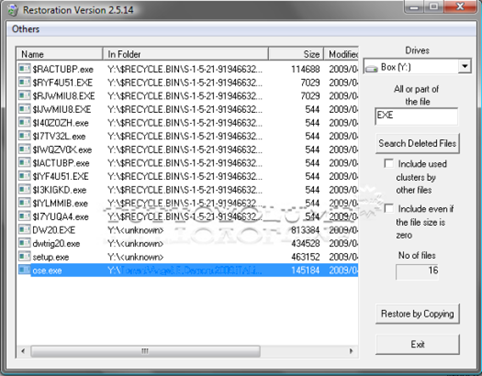
Una volta scaricato il programma, che consiste in un file auto-estraente, basterà indicare una cartella di destinazione dove scompattare i file, e avviare l’applicazione cliccando su Restoration.exe (esegui come amministratore in Windows Vista). Al termine della scansione ci verranno mostrati tutti i file di cui è possibile il recupero.
sudo fdisk /dev/sdX(dove X è la lettara del tuo disco che hai identificato prima). Premendo “m” otterrai il menu (”d” e’ per cancellare le partizioni “n” per aggiungerle). Es.: sudo fdisk /dev/sdb
sudo mkfs.etx2 /dev/(o mkfs.ext3 se vuoi usare il journaling o anche mkfs.reiserfs). Es.: sudo mkfs.ext2 /dev/sdb1
mkfs.vfat /dev/Ubuntu ora dovrebbe in automatico riconoscere il nuovo disco e mostrarti un’icona sul Desktop. Se questo non dovesse accadere, basterà “montare” manualmente il disco dalla shell con il comando mount.
Es.: sudo mount -t ext2| /dev/sdb1 /mnt/
o
Es.: sudo mount -t vfat /dev/sdb1 /mnt/
Buon divertimento!config.version = "8"
virtualHW.version = "3"
ide0:0.present = "TRUE"
ide0:0.filename = "Ubuntu.vmdk"
memsize = "256"
MemAllowAutoScaleDown = "FALSE"
ide1:0.present = "TRUE"
#ide1:0.fileName = "auto detect"
#ide1:0.deviceType = "cdrom-raw"
ide1:0.fileName = "ubuntu-9.10-install-i386.iso"
ide1:0.deviceType = "cdrom-image"
ide1:0.autodetect = "TRUE"
floppy0.present = "FALSE"
ethernet0.present = "TRUE"
usb.present = "TRUE"
sound.present = "TRUE"
sound.virtualDev = "es1371"
displayName = "Ubuntu"
guestOS = "Ubuntu"
nvram = "Ubuntu.nvram"
MemTrimRate = "-1"
ide0:0.redo = ""
ethernet0.addressType = "generated"
uuid.location = "56 4d 5c cc 3d 4a 43 29-55 89 5c 28 1e 7e 06 58"
uuid.bios = "56 4d 5c cc 3d 4a 43 29-55 89 5c 28 1e 7e 06 58"
ethernet0.generatedAddress = "00:0c:29:7e:06:58"
ethernet0.generatedAddressOffset = "0"
tools.syncTime = "TRUE"
ide1:0.startConnected = "TRUE"
uuid.action = "create"
checkpoint.vmState = ""
// start the process command
String []cmd = {executable,param1,..,paramN}
Runtime runtime = Runtime.getRuntime();
Process proc = runtime.exec(cmd);
// put a BufferedReader on the process output
InputStream inputstream =
proc.getInputStream();
InputStreamReader inputstreamreader =
new InputStreamReader(inputstream);
BufferedReader bufferedreader =
new BufferedReader(inputstreamreader);
// read the process output
String line;
while ((line = bufferedreader.readLine())
!= null) {
System.out.println(line);
}
// check for process failure
try {
if (proc.waitFor() != 0) {
System.err.println("exit value = " +
proc.exitValue());
}
}
catch (InterruptedException e) {
System.err.println(e);
}
String query = "INSERT INTO myTable .... ";
stmt.executeUpdate(query,Statement.RETURN_GENERATED_KEYS);
resultSet = stmt.getGeneratedKeys();
if ( resultSet != null && resultSet.next() )
{
newid = resultSet.getInt(1);
}
@VersionBasta aggiungere il suddetto codice al nostro JavaBean, ed aggiungere sul database il campo version di tipo intero.
private int version;